
Does a scan save the card automatically?
No. The camera suggests a match. You confirm the set, collector number, language, and condition before saving it.
§ Pokémon card scanner app
Unbinder uses the camera to suggest a match. You confirm the set, collector number, language, and condition before the card enters your collection.
Camera scanning is available in Unbinder for iOS and Android.
§ A careful scan
The camera shortens the search. You keep control of the details that affect the identity and context of the card.
Frame the front of the card in the mobile app. Unbinder returns a likely catalogue match to review.
Check the artwork, set, collector number, language, and condition. Change a field when the suggestion does not match your copy.
Save the confirmed card to your collection and place it in the binder or list you actually use.
§ After the scan
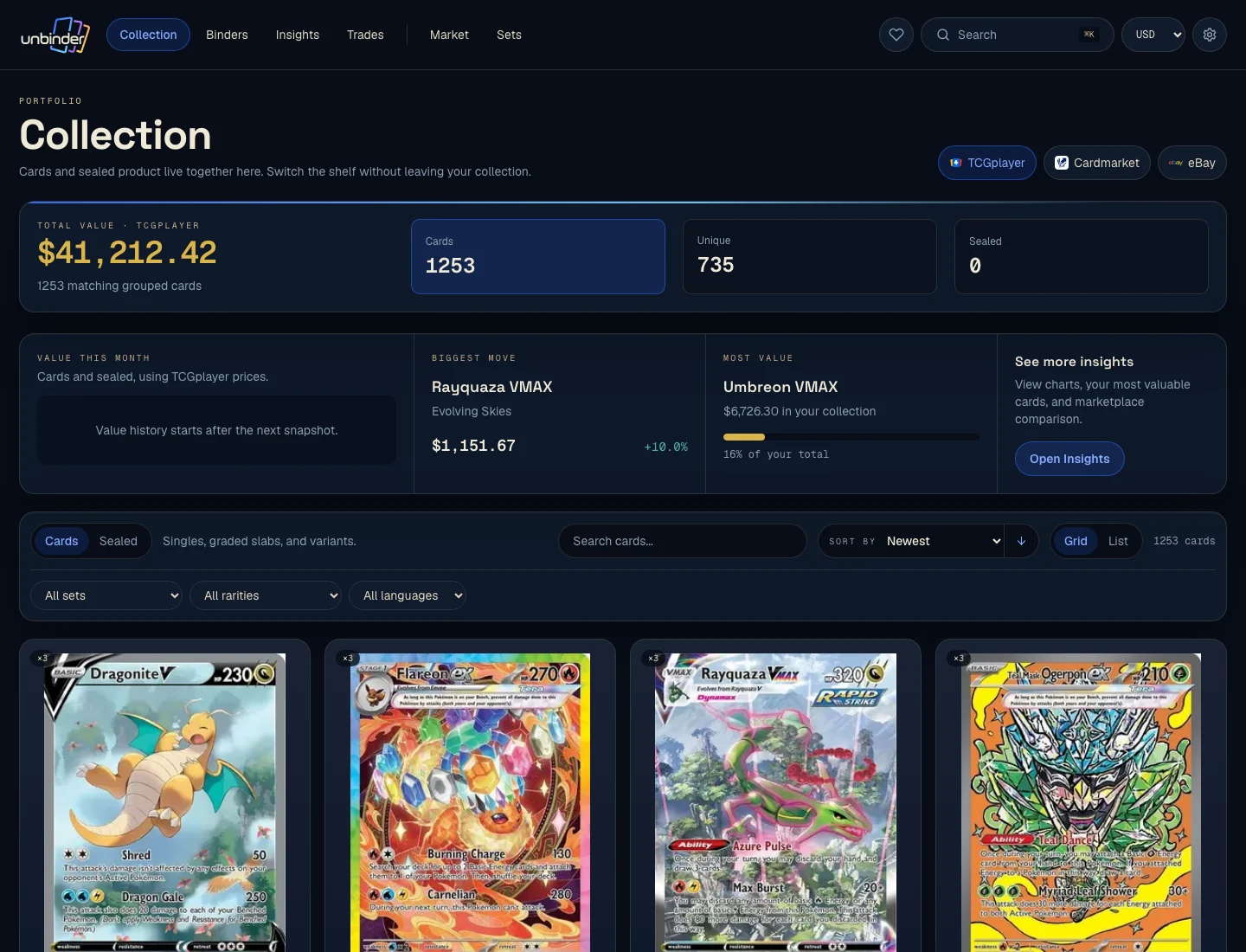
Search your cards, keep versions separated, and return to the right binder without rebuilding a spreadsheet from memory.
§ Where scanning works
The camera scanner is available in the Unbinder mobile app for iOS and Android. On the web, you can browse the card catalogue and review your collection; camera scanning is not available in the browser.
§ Before you scan
No. The camera suggests a match. You confirm the set, collector number, language, and condition before saving it.
You can record English, Japanese, and German card languages. Always check the language field before saving the card.
No. You select the condition yourself. A photo cannot replace inspecting edges, corners, surface, and centering in person.
No. Camera scanning is available in the iOS and Android apps. The web experience supports catalogue browsing and collection review.
§ Ready for the next card
Use Unbinder on your phone when a card needs to move from the table into the right binder.
§ Compare before choosing
Our named-app guide compares Collectr, Dex, and Unbinder by collecting job. This page stays focused on how the Unbinder scanner works.